Timebox View
Timebox View is a day planner with 30-minute time slots. Use it to plan the day by assigning work to specific hours.
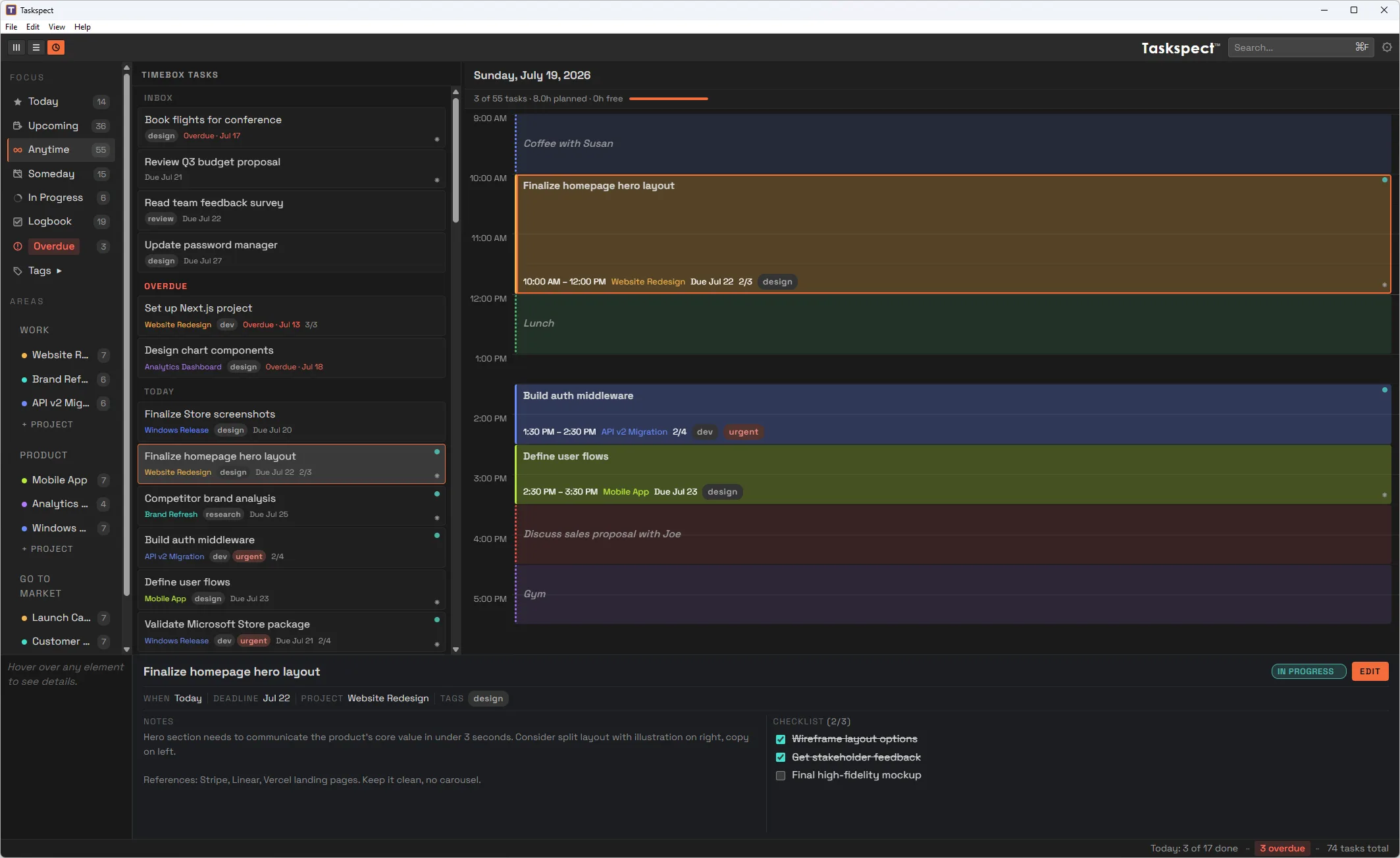
Timebox View on Windows with the task list on the left and hourly schedule on the right.
The task list
The left side shows unscheduled tasks organized into date groups:
- Inbox: Tasks in your Inbox. This group remains visible regardless of the active filter.
- Overdue: Tasks past their deadline, shown in red.
- Today: Tasks scheduled for today.
- Tomorrow, This Week, and Later This Month: Upcoming tasks grouped by timeframe.
- Someday: Tasks with no dates.
Drag the right edge of the task list to resize it. Double-click the edge to reset its width.
Scheduling work
- Drag a task from the left side into a time slot to schedule it.
- A scheduled task stays in the task list, so you can place it into more than one time slot.
- Drag a scheduled block to move it to another time.
- Drag a block’s top or bottom edge to adjust its duration.
- Double-click an empty slot to create a time block that is not tied to a task, such as Lunch or Meeting.
- Click the × button on a block to remove it from the schedule.
- Completing or cancelling a task automatically removes its scheduled blocks.
Time blocks
Time blocks are schedule entries that are not tied to a task. Use them for recurring activities such as lunch breaks, commutes, or meetings. Double-click a time block’s title to rename it, and click its color dot to cycle through colors.
Summary bar: The bar at the top shows scheduled task count, total planned time, and free time remaining. A red indicator means the day is overcommitted.